
To create a Post, go to:
- Posts > Add New
- Add a title
- Add some content
- Add categories and some tags
Vasty supports 6 custom post formats. These are Standard, Audio, Gallery, Link, Quote, and Video Post Format.
You can simply choose the post format you need and follow the detailed instructions in the appeared metabox below the editor.
Furthermore, you can set up the classic options (layout, sidebar, disable various post elements, etc), just like in page options, under the ‘Post Options’ section. Let’s see these available options below.
Post Options
Here you can set everything you need apart from the content of the posts (you can use Elementor or any editor for this). So, you will find the following, organized into tabs, sections:
Header/Main Menu
Header overlapping: Select if you wish or not to overlap your page header. The option inherit means that you will get what you set globally under Theme Options > Blog Options > Single Post Settings for your blog posts.
Header Skin: With this option, you can select the color of your header among Default, Dark, or Light. The option inherit means that you will get what you set globally under Theme Options > Blog Options > Single Post Settings for your blog posts. In case you use Slider in the Feature Section, select the header style per slide/image.
Main Navigation Menu: Here, you can select an alternative main navigation menu. You can choose among any of the available menus or inherit the global one (Menu > Theme Locations > Header Menu).
Second Navigation Menu: Here, you can select an alternative second navigation menu in case you are using a Header mode with 2 menu locations (under Theme Options > Basic Options > Theme & Header). You can choose among any of the available menus or inherit the global one (Menu > Theme Locations > Second Menu).
Third Navigation Menu: You can also set the Third Menu (Slide) in case you are using the third header layout style with the Slide Menu.
Responsive Navigation Menu: By this selection, you can select an alternative responsive navigation menu. You can choose among any of the available menus or inherit the global one (Menu > Theme Locations > Responsive Menu).
Sticky Header Mode: With this option, you can just leave the inherit option (Theme Options > Basic Options > Theme & Header) or select between Use Custom Header Sticky and Use Main Header Sticky.
Safe Button: With this option, you can select any of the available Safe Button area items or leave the global option (Theme Options > Basic Options > Theme & Header).
Responsive Header Overlapping: Here you can specify the behavior of the Responsive Header and if you need an overlapping with your content when the responsive header appears. Of course, you can just leave the inherit option (Theme Options > Basic Options > Theme & Header > Responsive Options).
Title/Description
Title/Description Visibility: Select visible if you wish your title and your description to be shown or hidden if you don’t want to show them.
Alternative Title: Add an alternative title if you don’t prefer the default one.
Description: Here, you can enter your product description.
Title Options: Select among the Custom Advanced Title, the Simple Title, or leave the inherit option (Theme Options > Blog Options > Single Post). With the Advanced title, you can set the padding per device, the container size to be default or large, background color, content background color, title color, description color, content size, content alignment, content position, and content animation. Additionally, set your background with the following options: Color only, the Featured image, or a Custom image. Finally, you can define the background position, add a pattern overlay, color overlay, and opacity overlay to ensure that your content is readable.
Post Format
Select if you want to show the post in double size in overview.
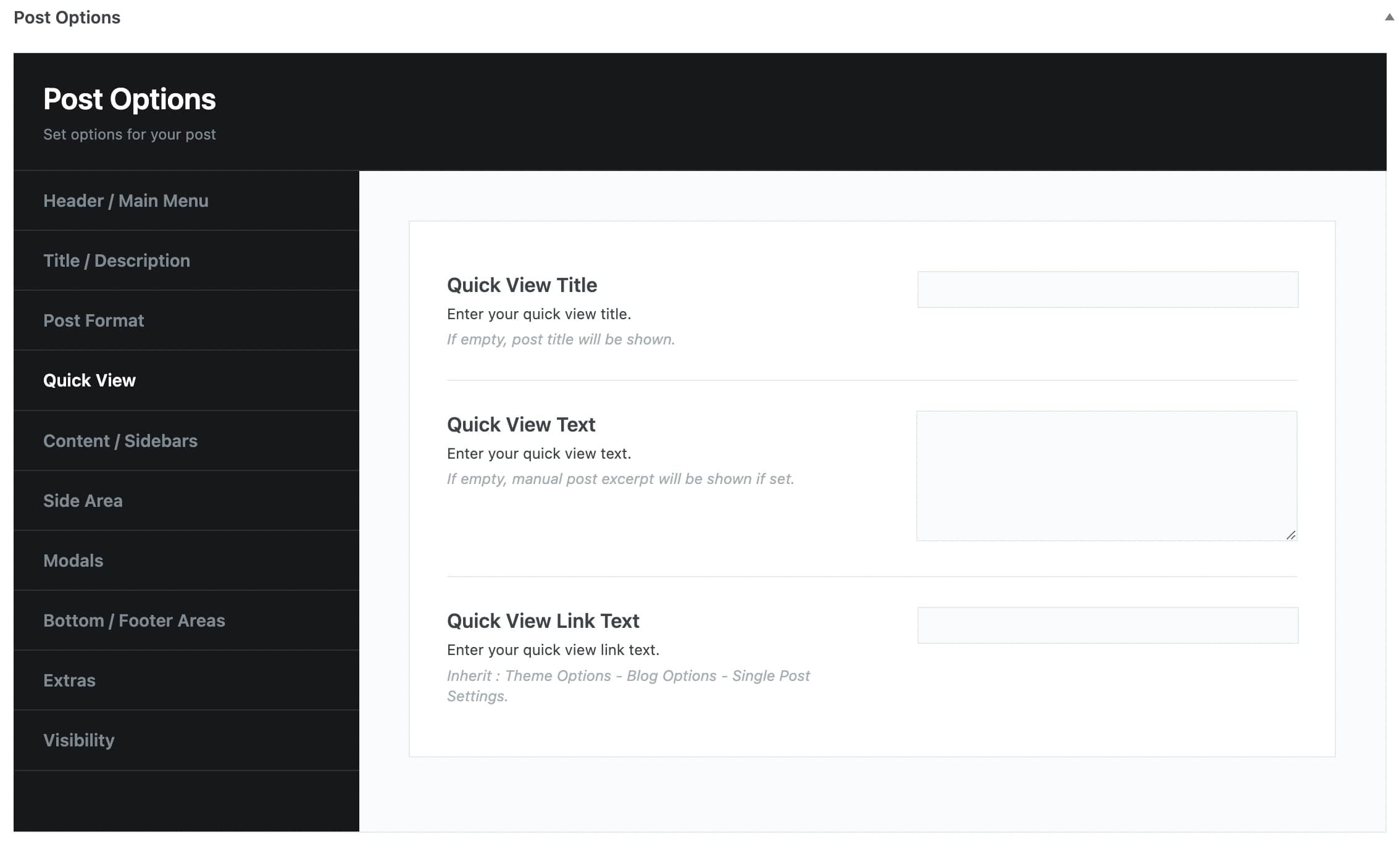
Quick View
Quick View Title: Enter a title for the Quick View
Quick View Text: Add the text you want to display on Quick View.
Quick View Link Text: Enter a text for the link on Quick View.
Contents/Sidebars
Top/Bottom Padding: Define the space above the content area. You can select the Inherit option for the global value under Theme Options or add custom Top and Bottom Padding per screen size.
Layout: Here, you can choose from full width, left sidebar, right sidebar, or inherit (Theme Options > Blog Options > Single Post).
Sidebar: You can select any Widget Area you wish or leave the inherit option (Theme Options > Blog Options > Single Post).
Fixed Sidebar: If you select it, your sidebar will be fixed.
Content Width: Select the Content Width for the main content post area. It can only affect the Full Width Layout posts. The global option can be specified under Theme Options > Blog Options > Single Post.
Content Skin: Select the Skin of your content among Inherit, Dark, Light, or create your Custom one. Options are plenty here as well.
Inherit: Background from Theme Options > Basic Options > Theme & Header > Background Options, Colors from Appearance > Customize > Colors – Main Content.
Side Area
Side Area Visibility: You can choose your side area to be visible or not. You also select inherit (Theme Options > Blog Options > Single Post).
Side Area Sidebar: Here, you can select which sidebar you want to use for your side area. You can select any Widget Area you wish or leave the inherit option (Theme Options > Blog Options > Single Post settings).
Modals
You can create your modals for this item.
Bottom/Footer Areas
Sticky Areas: Select if you want to make Bottom/Footer Areas Sticky.
Bottom Bar Area: You can select an area item for your Bottom Bar Area. You can also choose from main safe button, footer homepage, footer, none or inherit it from Theme Options > Basic Options > Theme & Header > Bottom/Footer Areas > Bottom Bar Area Item.
Footer Widgets Visibility: You can select the footer widgets to be visible or not. You can also choose Inherit (Theme Options > Basic Options > Theme & Header > Bottom/Footer Areas > Footer Widgets Settings).
Footer Bar Visibility: You can select the footer bar to be visible or not. You can also choose Inherit (Theme Options > Basic Options > Theme & Header > Bottom/Footer Areas > Footer Bar Settings).
Extras
Backlink: Select the backlink page.
Feature Media Type: Select the feature media type from Normal to Wide.
Theme Loader Visibility: Here, you can select if you wish your theme loader to be visible or not. You can also select inherit (Theme Options > Basic Options > Page Transitions).
Visibility
Here, you can select the elements you possibly need to disable. Elements to hide: Top bar, Logo, Main menu items: Search, Contact form, Language Selector, Shopping Cart, Login, Social Icons, Breadcrumbs, the Media Area, and the Back to Top.
With the most of the options above, you can override any options you have set in Theme Options > Blog Options > Single Post. This means that you can handle individually each one of your posts.
Feature Section
Vasty gives you the chance to add one of five special elements and to integrate your header with the feature section (Header Integration option). You can enable the Feature Section for Posts under Theme Options > Miscellaneous > Miscellaneous Options.
You can select among:
- Title
- Image
- Video
- YouTube
- Slider
- Revolution Slider
- Google Map
Follow the guidelines to set up the Feature Element of your choice.
Finally, you can define various options in your feature section. Choose the background and content options. Keep in mind that you can also enable various effects and/or Buttons. Please check the related tutorials depending on the Feature element you will choose.