
You will be amazed by the possibilities of this element. Firstly, you can define the height of the section, its background color, and if you wish to place it above or below your header. Afterwards, you can set your preferences for the slider element which will impress you. You can set your own slideshow speed, between the slides and for the slide in general, select if you wish to pause on hover, choose your navigation button, and your transition. Moreover, you can select the slider effect among animated, parallax, and fixed. Amazing, isn’t it?
More detailed:
General tab
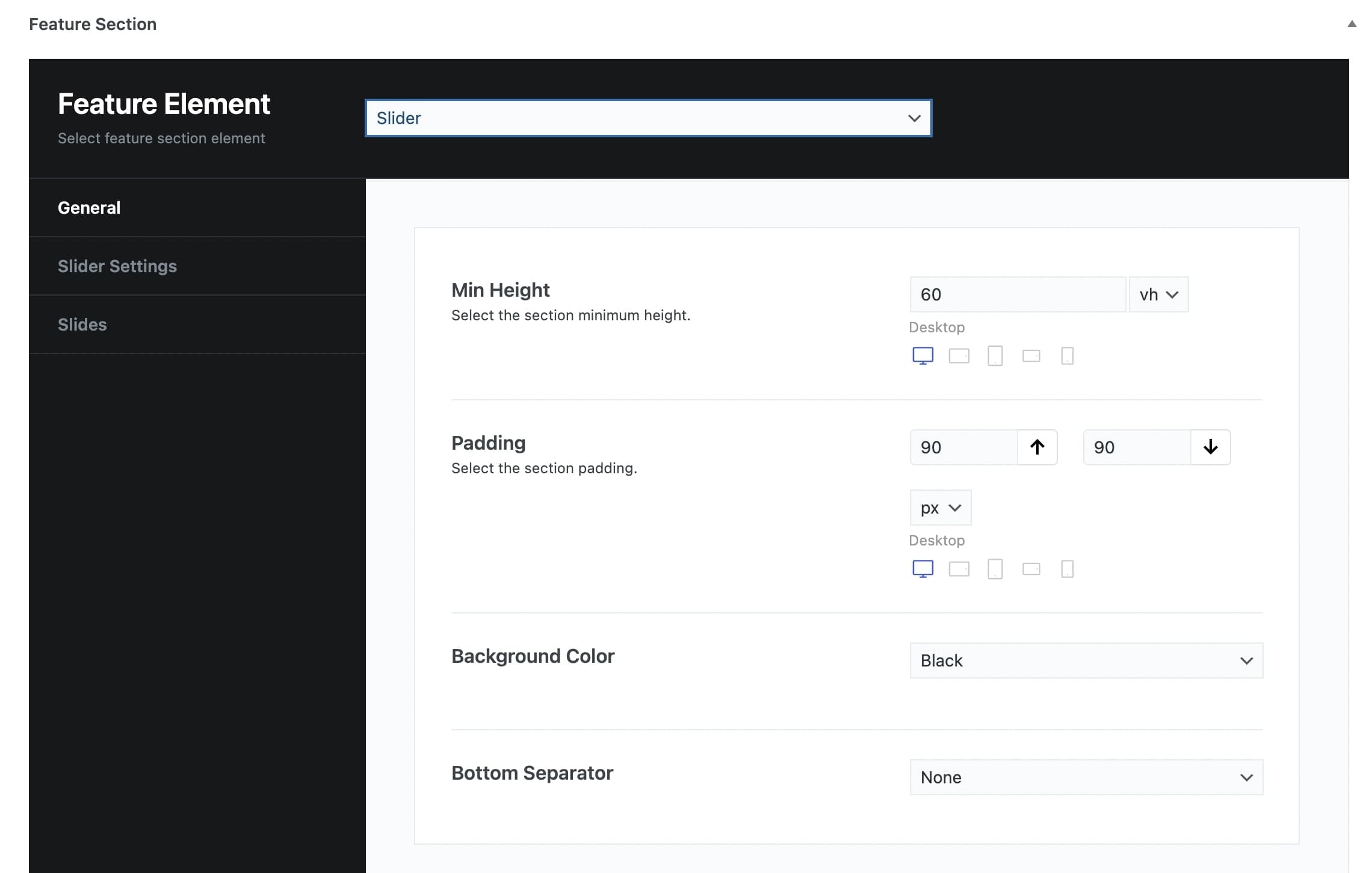
Min Height: You can select the minimum height of the feature slider in vh or pixels and per screen size.
Padding: You can set the Top and Bottom Padding in pixels or % per screen size.
Background Color: You can choose one of the background colors given (Transparent, Gradient, Primary, Secondary, Accent, Text, Black, White) or customize it by yourself by selecting the Custom option.
Bottom Separator: A large variety is given to you to choose from. If you do not wish to use a separator you can select None.
Afterwards, you can define the settings for your Slider.
Slider Settings
Slideshow Speed: Here, you can define the speed of your slideshow.
Pause on Hover: Select if you wish to have a pause while you hover on the image or not.
Navigation style: Pick one of three different styles.
Pagination: Choose if you want pagination or not.
Navigation Arrows: Here, you can select the navigation of your arrows.
Transition: Choose the transition among Slide, and Fade.
Slider Effect: Select the effect you want to have. The options are Animated, Classic Parallax, Advanced Parallax, Fixed Section and None.
Add Slides: Here, you can insert images to the slider.
Once, you will add Slides in your slider, more options will appear. To be more precise, have a closer look at the options offered.
Slide Options
Background/Header
Background Image: Here, you can upload your background image.
Background Image Size: You can select the size of your background image among Responsive, Extra Extra Large, Full, or Inherit. If you choose Inherit you can define it under Theme Options – Media Sizes.
Background Image Position: Select the position of your background per screen size. A lot of options are given.
Header Skin: Define the style of your header among Dark, Light, and Default.
Pattern Overlay: Select if you wish to have a pattern overlay or not.
Color Overlay: You can choose your color overlay among Transparent, Gradient, Primary, Secondary, Accent, Text, Black, White, or Custom.
Opacity Overlay: Here, you can define the opacity of your overlay in %.
Content
Container Size: You can select the size of your container between the default one and the large one.
Graphic Image: Here, you can upload your image.
Graphic Image Size: You can choose your graphic image size between Resize (Medium) and Full Size.
Graphic Image Max Height: Here, you can define the maximum height of your graphic image per screen size.
Sub Heading: You can write your sub heading.
Title: Type your title.
Description: Type your description.
Content Background Color: Here, you can select the background color of your content among None, Primary, Secondary, Accent, Text, Black, White, and Custom.
Sub Heading Color: You can choose your subheading color among Primary, Secondary, Accent, Text, Black, White, and Custom.
Title Color: You can choose your title color among Primary, Secondary, Accent, Text, Black, White, and Custom.
Description Color: Select among Primary, Secondary, Accent, Text, Black, White, and Custom.
Sub Heading Tag: Select the tag for your sub heading.
Title Tag: Choose the tag for your title.
Description Tag: Choose the tag for your description.
Content Size: Here, you can choose the size of your content among Container Size, Large, Medium, or Small.
Content Alignment: Select the alignment of your content from Left, Right, or Center.
Content Position: A large variety of options is given to you for the position of your content.
Content Animation: Choose the animation you want to have for your content. You can select eight options.
Buttons
Button Text: Here, you can enter the text for your button.
Button URL: Enter the URL in which your button will be direct to.
Button Target: Select if you want the button to be opened in a new page or in the same page.
Button Type: Select if you wish to have a Simple or Outline type.
Button Text Color: Choose the text color of your button.
Button Background Color: Choose the background color of your button.
Button Border Color: Choose the border color of your button.
Button Text Hover Color: Select the hover text color of your button.
Button Background Hover Color: Select the hover background color of your button.
Button Border Hover Color: Select the hover border color of your button.
Button Top Bottom Padding: You can choose the Top and Bottom Padding of your button per screen size.
Button Left Right Padding: You can choose the Left and Right Padding of your button per screen size.
Button Shape: Here, you can select the shape you wish for your button. Your options are Square, Round and Extra Round.
Button Shadow: Select the shadow of your button among Small, Medium, Large or None.
Button Class: Type the class of your button.
Extra
Scroll to Content: You can select among None, Arrow, or Arrow & Text.
Scroll to Content Text: Type the text you want to display.
Scroll to Content Color: Select scroll to content color.
Extra Class: If you wish to style this slide differently, then use this field to add a class name and then refer to it in your CSS file.