
In this section, you can add the Google map you need with multiple points, custom or full-screen height. Firstly, you can define your options for the feature section, and secondly, your preferences for the map.
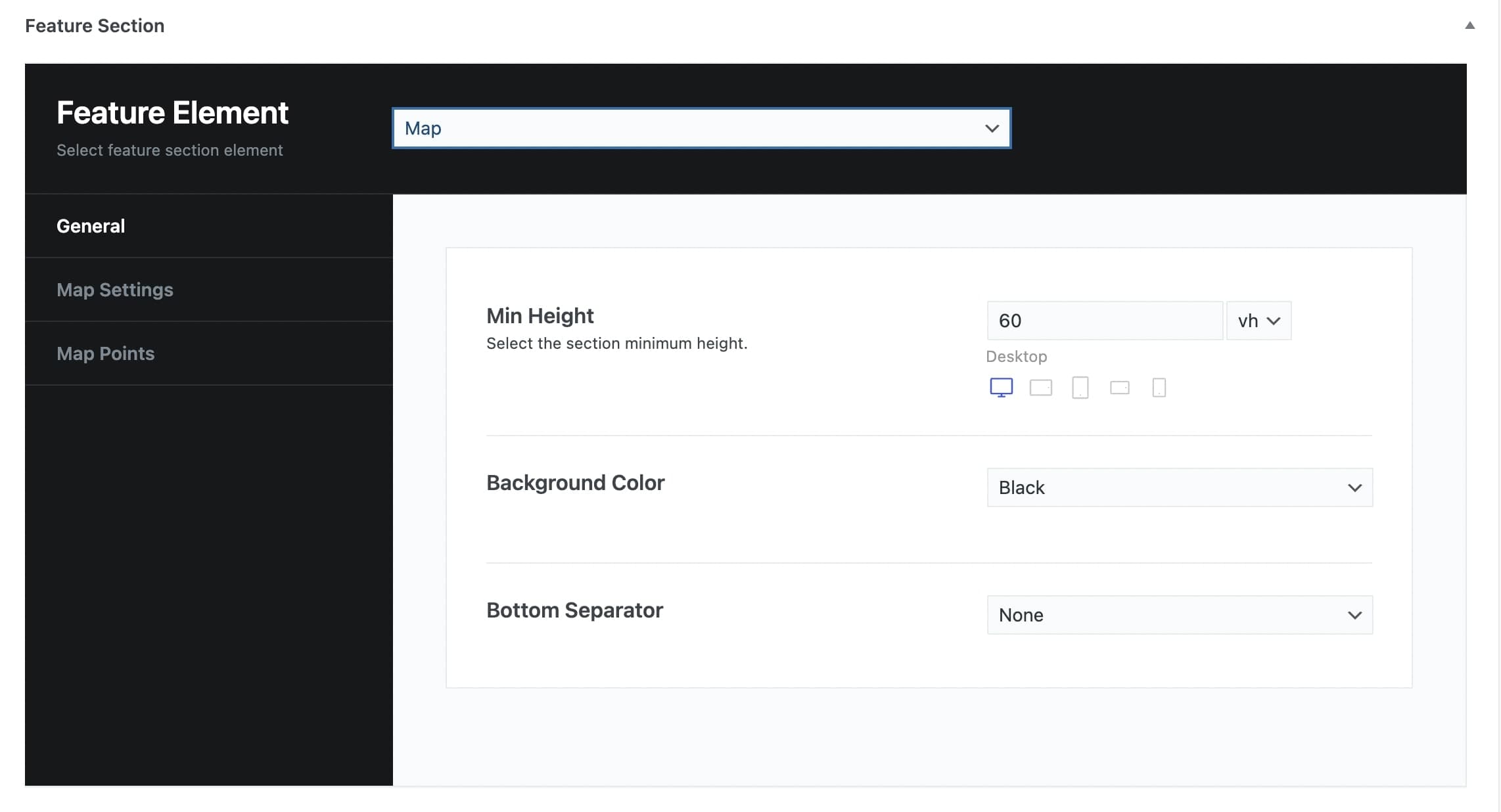
More precisely:
General tab
Min Height: You can select the minimum height of the feature image in vh or pixels and per screen size.
Background Color: You can choose one of the background colors given (Transparent, Gradient, Primary, Secondary, Accent, Text, Black, White) or customize it by yourself by selecting the Custom option.
Bottom Separator: A large variety is given to you to choose from. If you do not wish to use a separator you can select None.
Map Settings
Single Point Zoom: Here, you can define your single point zoom.
Global Marker Type: Select your type among Image, Pulse Dot Icon, and Dot Icon.
Global Marker: Here, you can upload your image for your marker.
Disable Custom Style: Here, you can select if you want to disable the custom style or not.
Map Points
You can insert points to your map.
Marker tab: Add Marker, Latitude, and Longitude values.
Info Box tab: Add Title, Info Text, and select if you need to Open Info Text Onload.
Link tab: Add the Link Text, Link URL, Link Target, and Link Class.